Impossible lire une video avec Mplayer par contre aucun problème pour lire une vidéo avec vlc ou xplayer
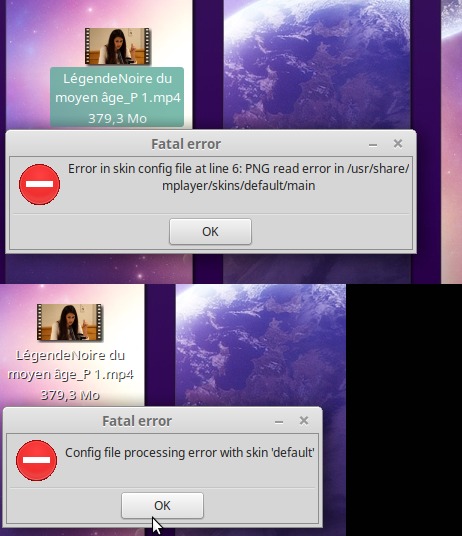
 [Résolu]Impossible lire video avec Mplayer
 [Résolu]Impossible lire video avec Mplayer
Code : Tout sélectionner
sudo mv -vf /usr/share/mplayer/skins /usr/share/mplayer/skins.sosCode : Tout sélectionner
skin default not found
Code : Tout sélectionner
cat /etc/mplayer/mplayer.confCode : Tout sélectionner
cat ~/.mplayer/configCode : Tout sélectionner
# MPlayer configuration file
#
# Configuration files are read system-wide from /etc/mplayer/mplayer.conf
# and per user from ~/.mplayer/config, where per-user settings override
# system-wide settings, all of which are overrriden by the command line.
#
# The configuration file settings are the same as the command line
# options without the preceding '-'.
#
# See the CONFIGURATION FILES section in the man page
# for a detailed description of the syntax.


##################
# video settings #
##################

# Specify default video driver (see -vo help for a list).
# vo=xv,x11

# FBdev driver:
#
# mode to use (read from fb.modes)
#fbmode = 640x480-120
#
# location of the fb.modes file
#fbmodeconfig = /etc/fb.modes

# Specify your monitor timings for the vesa and fbdev video output drivers.
# See /etc/X11/XF86Config for timings. Be careful; if you specify settings
# that exceed the capabilities of your monitor, you may damage it.
#
# horizontal frequency range (k stands for 1000)
#monitor-hfreq = 31.5k-50k,70k
#
# vertical frequency range
#monitor-vfreq = 50-90
#
# dotclock (or pixelclock) range (m stands for 1000000)
#monitor-dotclock = 30M-300M

# Start in fullscreen mode by default.
#fs=yes

# Change to a different videomode when going fullscreen.
#vm=yes

# Override the autodetected color depth, may need 'vm=yes' as well.
#bpp=0

# Enable software scaling (powerful CPU needed) for video output
# drivers that do not support hardware scaling.
#zoom=yes

# standard monitor size, with square pixels
#monitoraspect=4:3

# Use this for a widescreen monitor, non-square pixels.
#monitoraspect=16:9

# Keep the player window on top of all other windows.
#ontop=yes


##################
# audio settings #
##################

# Use pulse, then alsa, then SDL video with the aalib subdriver by default.
ao=pulse,alsa,sdl:aalib

# Use SDL audio driver with the esd subdriver by default.
#ao = sdl:esd

# Specify the mixer device.
#mixer = /dev/mixer

# Resample the sound to 44100Hz with the lavcresample audio filter.
#af=lavcresample=44100


##################
# other settings #
##################

stop-xscreensaver=yes

# Joystick input is disabled because of issues on some laptops(thinkpad).
joystick=no

# Pretend to be Window Media Player.
# Fixes playback when playlist and media file use the same URL.
#user-agent=NSPlayer/4.1.0.3856

# Drop frames to preserve audio/video sync.
#framedrop = yes

# Specify your preferred skin here (skins are searched for in
# /usr/local/share/mplayer/skins/<name> and ~/.mplayer/skins/<name>).
#skin = Abyss

# Resample the font alphamap.
# 0     plain white fonts
# 0.75  very narrow black outline (default)
# 1     narrow black outline
# 10    bold black outline
#ffactor = 0.75

# cache settings
#
# Use 8MB input cache by default.
#cache = 8192
#
# Prefill 20% of the cache before starting playback.
#cache-min = 20.0
#
# Prefill 50% of the cache before restarting playback after the cache emptied.
#cache-seek-min = 50

# DVD: Display English subtitles if available.
#slang = en

# DVD: Play English audio tracks if available.
#alang = en

###################
# DVDNAV Settings #
###################
#vc=ffmpeg12,

# You can also include other configuration files.
#include = /path/to/the/file/you/want/to/include
Code : Tout sélectionner
# Write your default config options here!
Code : Tout sélectionner
mplayer -v | grep MPlayerCode : Tout sélectionner
MPlayer 1.3.0 (Debian), built with gcc-7 (C) 2000-2016 MPlayer Team
traduit ça donneSTEP5: Installing a GUI skin
~~~~~~~~~~~~~~~~~~~~~~~~~~~~
Unpack the archive and put the contents in /usr/local/share/mplayer/skins/ or
~/.mplayer/skins/. MPlayer will use the skin in the subdirectory named default
of /usr/local/share/mplayer/skins/ or ~/.mplayer/skins/ unless told otherwise
via the '-skin' switch. You should therefore rename your skin subdirectory or
make a suitable symbolic link.
ÉTAPE 5 : Installation d'un skin GUI
~~~~~~~~~~~~~~~~~~~~~~~~~~~~
Décompressez l'archive et mettez le contenu dans /usr/share/mplayer/skins ou
~/.mplayer/skins/. MPlayer utilisera le skin dans le sous-répertoire nommé default.
de /usr/share/mplayer/skins ou ~/.mplayer/skins/ sauf indication contraire.
via l'interrupteur '-skin'. Vous devez donc renommer votre sous-répertoire skin ou bien
faire un lien symbolique approprié.
Code : Tout sélectionner
Dans usr/share/mplayer/skins Code : Tout sélectionner
usr/share/mplayer/skins/icons